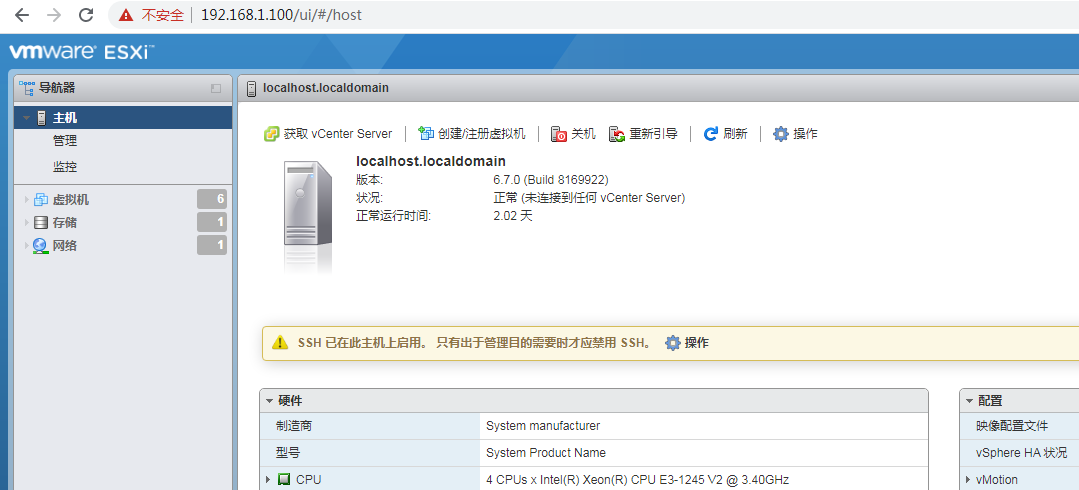
远程修改 ESXI 8.0 管理ip地址
场景:
适用于不方便在设备边操作而又需要修改管理地址的场景。
适用于不方便外接显示器的场景。
注意:
生产环境一定确定好网络配置信息否则可能会因为网络配置不正确导致无法正常访问。
步骤:
1.开启SSH远程访问
启用安全 Shell(也就是 EXSi 可以被 SSH 访问的功能)
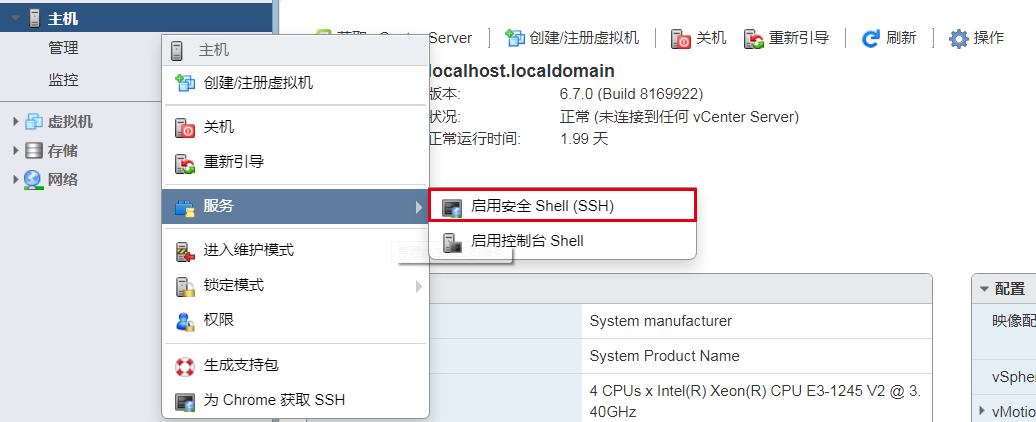
2.
- 使用
SecureCRT SSH2连接ESXi主机,现在使用dcui并没有任何反应,在Session标签栏右键点击Disconnect。 - 这里我测试用
Finalshell也是完全没问题的
The time and date of this login have been sent to the system logs. |
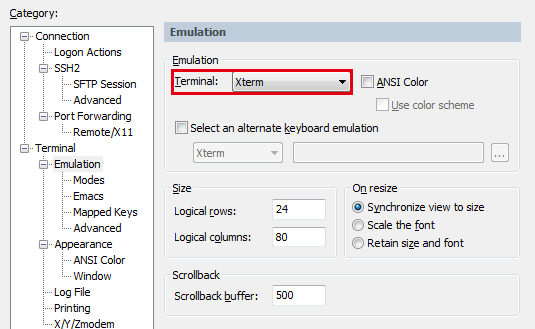
3.连接到SSH
- 如果是使用
Finalshell则可省略此步骤 - 在
Session标签栏右键点击Session Option修改Terminal类型为Xterm后重新SSH2连接
4.使用 dcui 工具
- 再次使用
dcui工具,这时已经可以进入EXSi的系统管理界面。
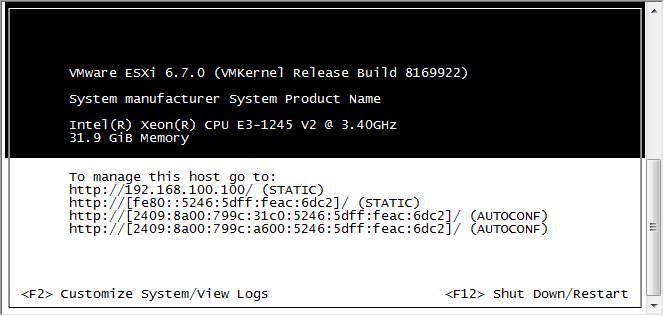
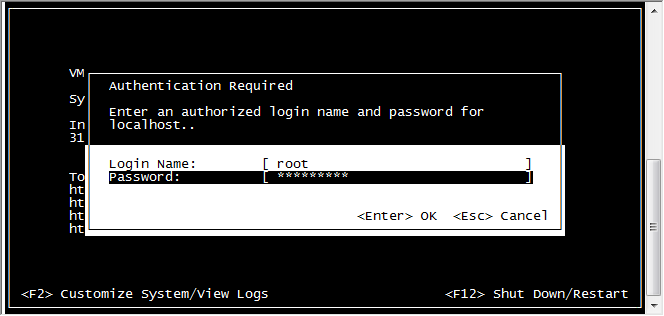
5.登录到控制中心
- 点击
F2进行Customize System输入用户名、密码进入
6.修改管理IP地址
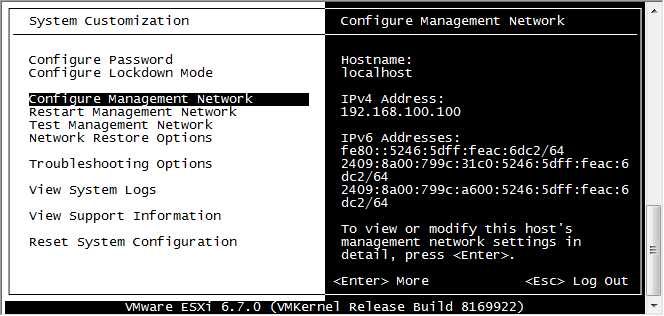
- 选择
Configure Management Network
7.选择 IPv4 Configuration
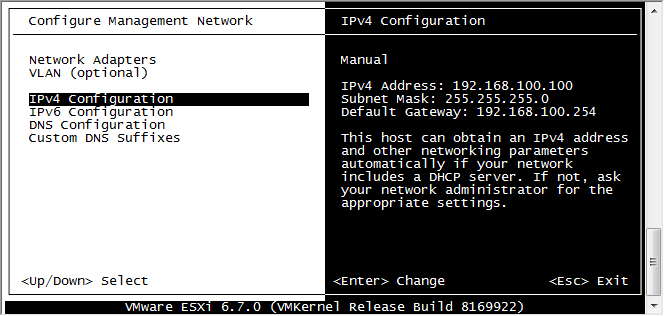
8.配置静态IP地址,然后点击回车

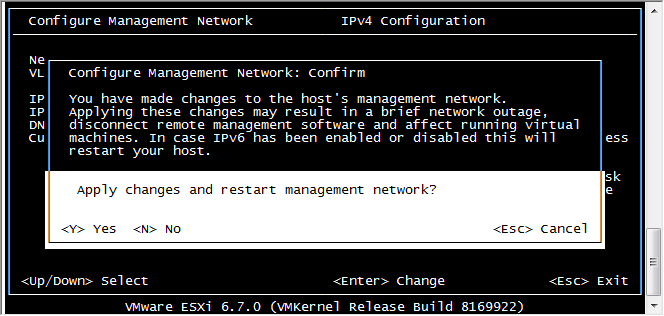
9.点击 Esc 选择 Yes 应用配置并且重启管理网络
10.此时已近可以用修改后的IP地址登录管理ESXi主机